Published 22 October 2026. After a busy day of PHP updates, we have put together the checks that matter when you need to patch a live website without overlooking its active runtime. The screenshots below were captured during our checks today.
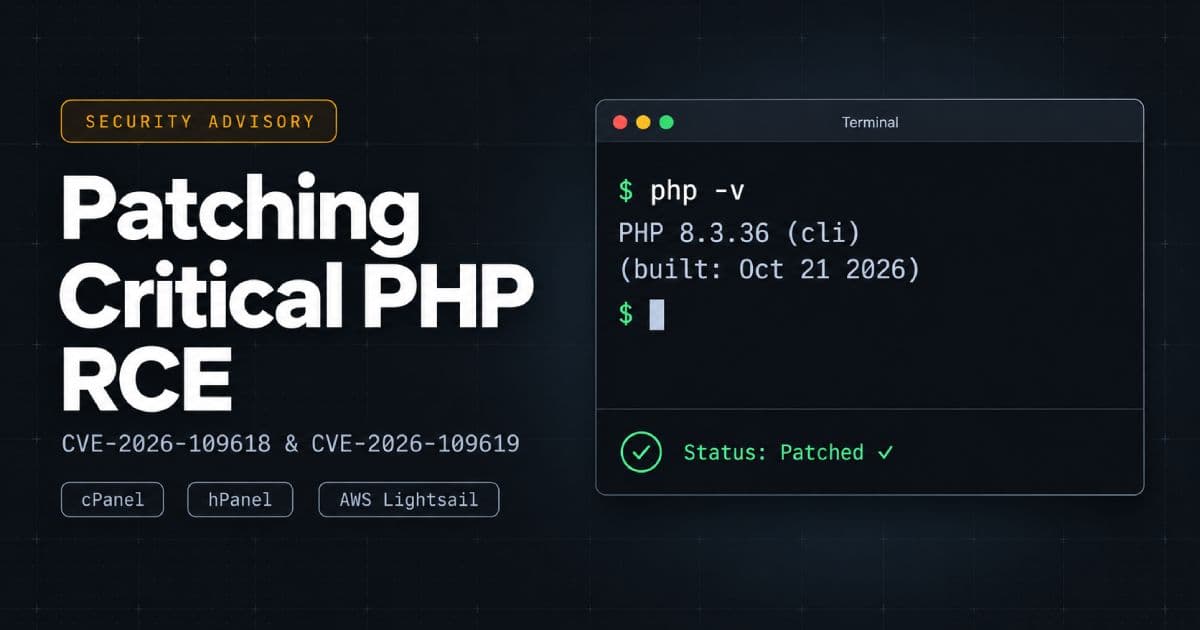
On 21 October, PHP released security updates for two critical remote code execution vulnerabilities: CVE-2026-109618 and CVE-2026-109619, also known as PHP2Shell. The PHP security advisory calls for immediate updates. WordPress, theme and plugin updates alone do not replace the PHP runtime fix.
Which PHP versions contain the fixes?
Use this table for upstream PHP releases. These are the minimum releases fixing these two vulnerabilities, rather than a promise that a version is free of every security issue. Prefer the latest compatible, supported release available from your trusted supplier.
| PHP branch | Upstream releases missing these fixes | First fixed release | Support on 22 October 2026 |
|---|---|---|---|
| PHP 8.5 | Earlier 8.5 releases | 8.5.12 | Active support; security support to 31 December 2029 |
| PHP 8.4 | Earlier 8.4 releases | 8.4.27 | Active support; security support to 31 December 2028 |
| PHP 8.3 | Earlier 8.3 releases | 8.3.36 | Security fixes only, to 31 December 2027 |
| PHP 8.2 | Earlier 8.2 releases | 8.2.35 | Security fixes only, to 31 December 2026 |
| PHP 8.1 and older | Unsupported upstream branches | No new supported upstream release | Check vendor backports urgently and plan migration |
Release numbers are listed in PHP’s vulnerability record; lifecycle dates come from PHP’s support schedule.
A backport needs evidence. A distributor may apply a fix while retaining an older base version number. Ask for the complete package revision and an advisory covering both CVEs. PHP also supplied exceptional source patches for 7.4, 8.0 and 8.1; those do not restore upstream support. Use a maintained vendor build or plan a supported upgrade, rather than assuming an old branch is protected.
What happened, and which websites are at risk?
These are PHP engine flaws involving request memory and cleanup:
- CVE-2026-109618: memory exhaustion can interrupt PHP while internal data is only partly initialised, leaving cleanup to act on invalid memory. See PHP’s out-of-memory advisory.
- CVE-2026-109619: a worker can retain references to freed request memory, which a later request may access. See PHP’s stale-state advisory.
PHP identifies web-serving installations as at risk, including PHP-FPM, Apache mod_php, CGI, FrankenPHP and LiteSpeed. It highlights mod_php as the highest risk, with a demonstrated attack before application code runs. An ordinary application login therefore does not establish protection. PHP advisory
Successful exploitation can run code with the web worker’s permissions. That can expose application data and credentials, allow files to be changed, or disrupt a site. It does not automatically mean root access. The precise impact depends on permissions, configuration and application behaviour. PHP impact assessment
Before you change anything
- Identify the stack. Record the operating system, package source, web server, PHP handler and the branch assigned to each site. Check subdomains, staging sites and background jobs too.
- Take a recoverable backup. Include the database, uploaded files, application code and relevant server configuration. On a VPS, take a snapshot and confirm how you would restore it.
- Separate patching from migration. Moving from 8.4.26 to 8.4.27 is a patch update. Moving from 8.2 to 8.5 needs broader compatibility checks. Where possible, patch the existing supported branch first.
- Record your baseline. Note enabled extensions, key PHP settings and whether login, forms and checkout currently work. Test on a staging copy where available.
- Plan worker restarts. Installing a package is only part of the job. Existing web workers and long-running PHP processes must pick up the new runtime. Allow for a short service interruption.
If you only have a hosting account, ask the provider to handle server packages and worker restarts. A useful support request is: “Please confirm that the PHP serving my domain is patched for CVE-2026-109618 and CVE-2026-109619, including the full package revision and worker restart status.”
Update PHP in cPanel and WHM
Server administrators: update EasyApache packages
In WHM, open Software → EasyApache 4 and use Run system update to update available system packages. Review the transaction and its result. Use Currently Installed Packages → Customise when you need to inspect installed PHP branches or add a compatible branch and its extensions. Review any provisioning changes carefully. cPanel’s EasyApache update documentation
On an AlmaLinux or Rocky Linux server using EasyApache RPMs, the following is an example for updating installed cPanel PHP packages. It requires administrator access; review the proposed changes before accepting them:
sudo dnf upgrade --refresh 'ea-php*'Use the package manager and procedure for your actual operating system. This example is not for cPanel on Ubuntu or for CloudLinux’s separate alt-php packages. If multiple PHP suppliers are installed, confirm patch coverage for each runtime in use. cPanel package naming and platform guidance
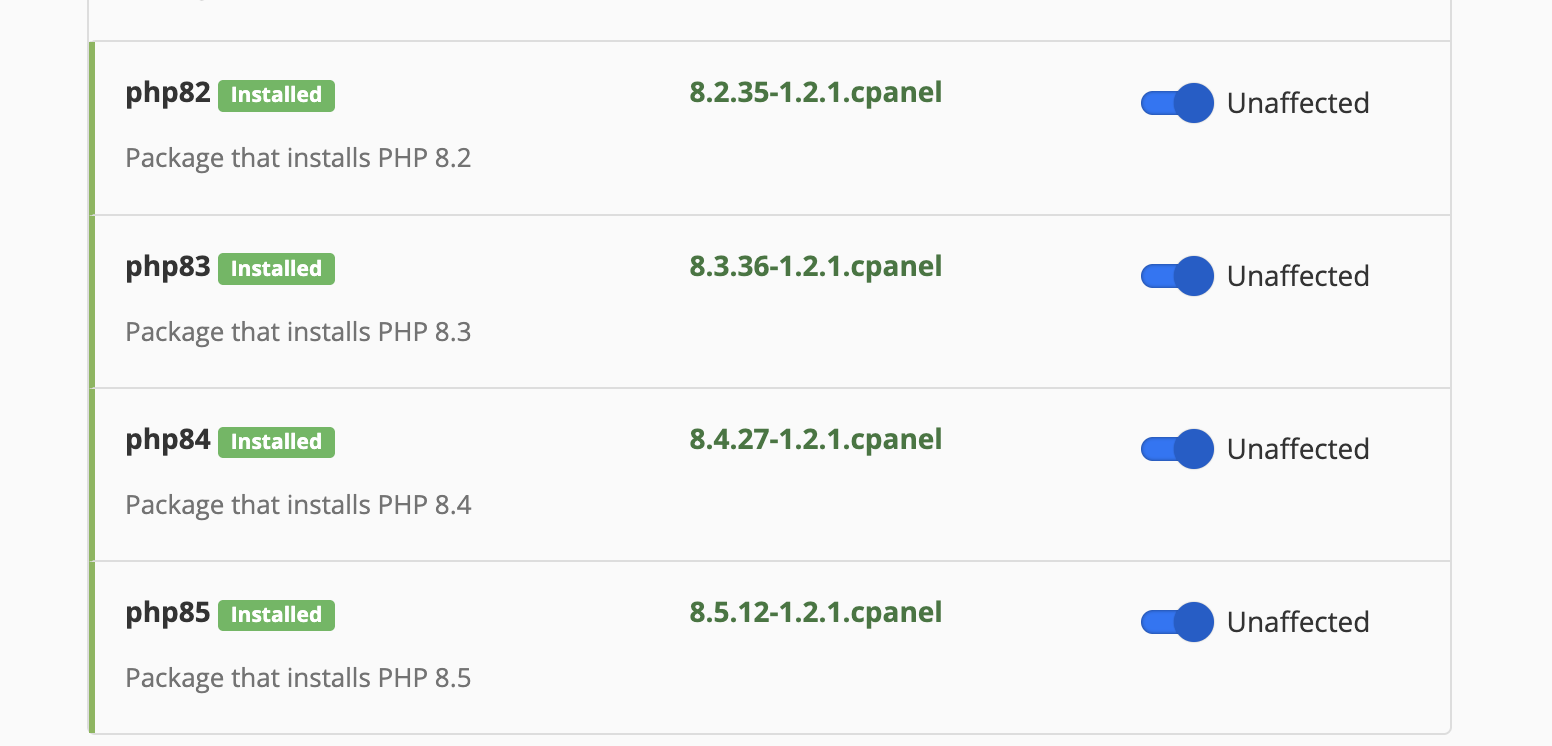
Use WHM’s supported service controls to restart every affected PHP-FPM service and Apache where applicable. Check that the services return to a healthy state. A package appearing as Installed does not establish that all existing workers have restarted or that every domain uses that package.
Website owners: check the domain in MultiPHP Manager
- Open cPanel → Software → MultiPHP Manager.
- Check the domain’s current branch and whether its version is inherited.
- If you need a branch change, select the domain, choose a compatible installed PHP branch and select Apply. Repeat for other relevant domains.
- Verify the exact running version in the website itself, using the checks below.
The selector chooses a branch, such as PHP 8.4; it does not install the latest patch release. If you already use the right branch, the host can patch it without your changing the selection. If a branch is missing, contact the administrator. MultiPHP Manager documentation
Check extensions through the host’s PHP extension tools or an application diagnostic. MultiPHP INI Editor manages configuration directives; it does not establish that an extension is installed. Keep the modules your application requires, such as mysqli or PDO drivers, curl, mbstring, XML and image libraries.
WHM troubleshooting: permission denied creating .htaccess.lock
During one PHP version change in WHM, we encountered a permissions error that prevented cPanel from updating the domain’s PHP handler. This is a shortened, anonymised version of the message; the domain and account name below are placeholders:
The system failed to apply the "PHP" version to "example.com".
Cpanel::Exception::IO::FileCreateError
The system failed to create the file
"/home/exampleuser/public_html/.htaccess.lock":
Permission denied.
The cause in this case: both public_html and .htaccess had permissions 555. These permissions grant read and execute access, but no write access. The account user could not create .htaccess.lock inside the directory, and .htaccess was not writable for the PHP handler update.
How we fixed it: we restored owner write access on those two paths. The directory became 755, and the file became 644. Both allow the owner to write, without granting write access to other accounts. See cPanel’s explanation of file and directory permissions.
Before applying the same fix, confirm the domain’s actual document root, check that both paths belong to the correct cPanel account, and back up the existing .htaccess file. Replace exampleuser with the actual account username; an addon domain may use a different directory.
Inspect the two paths first:
ls -ld /home/exampleuser/public_html /home/exampleuser/public_html/.htaccessFor the account-owner permissions issue described above, run these commands as the owner or through an administrator’s terminal:
chmod 755 /home/exampleuser/public_html
chmod 644 /home/exampleuser/public_html/.htaccess
The second command ends at .htaccess, with no trailing colon. These commands change only the named directory and file; do not add a recursive flag or use 777 as a workaround.
Return to WHM → Software → MultiPHP Manager, select the domain and apply the PHP version again. Restoring these permissions resolved our blocker. Then complete the runtime and website checks below: fixing permissions enables the handler change, but does not itself install PHP’s security patches.

If the error persists, ask the administrator to investigate ownership, access control lists or immutable attributes. A Permission denied message alone does not prove that every account needs this particular permissions change.
Update or confirm PHP in Hostinger hPanel
Check the managed-hosting notice first. In its update at 07:20 UTC on 22 October 2026, Hostinger says PHP’s fix is installed across its hosting servers, excluding customer-managed VPS instances. This is a provider statement about that rollout; confirm your own account if anything is unclear. Hostinger’s PHP2Shell update
For a planned branch change in hPanel:
- Go to Websites → Dashboard for the website.
- Search the sidebar for PHP Configuration.
- Select a supported branch that your application, theme and plugins support, then select Update.
- Review the required extensions and options, then test the website.
Check the scope shown in your account: a PHP selection can affect other websites on the same hosting plan. Interface labels can vary. Hostinger’s PHP version instructions
A branch change is not necessary solely to obtain a provider-applied patch. If the visible version still looks old, request the exact build and patch confirmation. Hostinger VPS owners must follow the procedure for their own installed stack; hPanel’s managed-hosting rollout does not patch a self-managed VPS.
Update PHP on AWS Lightsail or a Linux VPS
Lightsail is a hosting service, rather than a single PHP installation method. Establish whether your instance uses distribution packages, a third-party repository, containers or a bundled Bitnami stack. AWS states that it does not patch an instance’s operating system or applications for you after creation. AWS update guidance
Ubuntu or Debian with distribution-managed PHP
Connect through SSH and inspect the PHP available in the shell:
command -v php
php -v
php --ini
For a server already using PHP 8.4 from APT, refresh package information and inspect the installed packages and candidate versions:
sudo apt update
apt list --installed 'php8.4*'
apt-cache policy php8.4-cli php8.4-fpm php8.4-common
Check the candidate package against your supplier’s advisory for both CVEs. An update command that reports no changes does not prove a fix is available. Resolve held packages, repository failures or an unpatched candidate before treating the work as complete.
The following example upgrades the listed packages only if already installed. Replace the branch and include the other installed PHP packages and extensions identified above. Preview the transaction first:
sudo apt-get --simulate install --only-upgrade php8.4-cli php8.4-fpm php8.4-common
sudo apt-get install --only-upgrade php8.4-cli php8.4-fpm php8.4-common
If Apache uses mod_php, include its installed package, such as libapache2-mod-php8.4, instead of assuming FPM is active. Include other PHP branches that still serve applications. Stop and investigate unexpected removals or a switch of package supplier.
For PHP-FPM, restart the actual service in use; this example is for the standard PHP 8.4 unit:
sudo systemctl restart php8.4-fpm
sudo systemctl status php8.4-fpm --no-pager
For Apache with mod_php, restart Apache and check it:
sudo systemctl restart apache2
sudo systemctl status apache2 --no-pager
An Nginx restart alone does not restart PHP-FPM. If you change Nginx configuration, validate it with nginx -t before reloading. Also restart affected queue workers, scheduled daemons and application containers through their normal deployment procedure.
Bitnami and other bundled stacks
If PHP lives under /opt/bitnami/php/, a system package update can leave the bundled runtime untouched. Inspect it directly:
/opt/bitnami/php/bin/php -vAWS’s Lightsail PHP upgrade guidance describes launching a new instance and migrating data for Bitnami WordPress and LAMP upgrades. Confirm that the replacement image actually contains a patched runtime before proceeding; a newly launched instance is not itself proof of a fix.
Take a snapshot, back up the database and files, prepare the replacement stack, then test the migrated site before switching traffic. Carry over scheduled tasks, certificates, mail delivery and configuration deliberately. For a shop or membership platform, plan a final data synchronisation so orders or registrations are not lost during the switch. Ask the supplier about supported in-place patch options if migration cannot be completed promptly.
Verify the website after the update
Check web PHP as well as command-line PHP
In WordPress, open Tools → Site Health → Info → Server and read the PHP version and PHP SAPI entries. This inspects the environment handling WordPress requests. Repeat for each separately configured site.
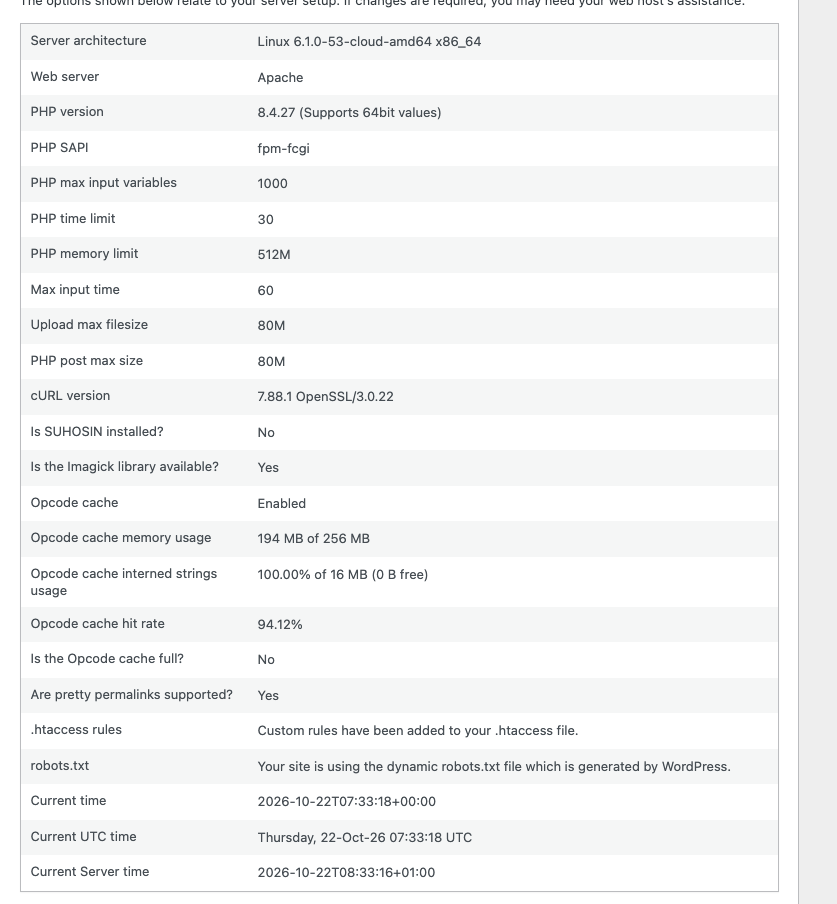
The screenshot above shows an Apache server using fpm-fcgi. Seeing “Apache” in a server description does not necessarily mean PHP runs as mod_php. Check the handler and the version together.
For another application, use its authenticated environment diagnostic or a temporary, access-restricted endpoint that reports only PHP_VERSION and PHP_SAPI. Avoid leaving a public phpinfo page online: it reveals much more configuration than a version check needs. Remove the diagnostic after use, and ensure you are testing a fresh application response rather than a cached page.
Test the workflows your business relies on
- Access: log in and out, open the admin area and check password reset.
- Enquiries: submit a form and confirm the message actually arrives.
- Commerce: use a payment provider’s test mode or an agreed controlled transaction to check checkout, payment confirmation and order emails.
- Content and files: upload an allowed image or document and check resizing, downloads and imports where used.
- Background work: confirm scheduled jobs, queues, renewals and integrations still run.
- Errors and capacity: review application, web server and PHP-FPM logs; investigate fatal errors, recurring deprecations, timeouts and memory problems.
Record the domain, full package revision, web PHP version, handler, restart time and test results. A clean home page is useful evidence, but it does not test a checkout, scheduled task or a second backend server. Check every node if traffic is load-balanced.
If a branch upgrade breaks the application, use a patched compatible branch while you fix the compatibility problem. Restoring an old snapshot may also restore vulnerable PHP; keep that recovery instance restricted until it is patched.
If you cannot update immediately
Treat this as a short containment period. Restrict access to the affected application at the proxy, load balancer or firewall where practical, and give the patch or migration a clear owner. A WAF can help filter known attacks, but it does not repair PHP’s memory handling.
PHP documents partial measures for specific paths:
- For CVE-2026-109619, disable session.upload_progress.enabled in startup or administrator-controlled configuration and restart all workers. On PHP 8.5, also disable fatal_error_backtraces. Application-level ini_set() is too late for the early upload path, and FPM .user.ini is not a substitute. These changes do not cover every stale-state path. Stale-state mitigation guidance
- For CVE-2026-109618, PHP describes administratively enforcing memory_limit=-1 to remove one predictable exhaustion trigger, alongside strict request limits and external memory controls. This can increase availability risk and still leaves underlying allocation failures possible. It needs a server administrator’s assessment, rather than a routine shared-hosting settings change. Out-of-memory mitigation guidance
Do not treat disabling a few application functions or hiding error messages as a fix. Follow the full advisories for the stack you operate. If you cannot establish effective containment, take the affected application out of public service until it can be updated.
Frequently asked questions
Does updating WordPress fix these vulnerabilities?
No. Update PHP through the hosting provider, operating system package source or stack supplier. Keep WordPress, plugins and themes maintained as well, but confirm the runtime patch separately.
My host says it applied a backport. Is an older number always vulnerable?
No. The base version alone cannot establish the patch state of a vendor-maintained package. Request an advisory and the full installed revision covering both vulnerabilities, then confirm that workers use that build.
Do I need to jump straight to PHP 8.5?
You can patch a supported existing branch first. Choose a branch migration after compatibility testing. PHP 8.2’s security support ends on 31 December 2026, so sites using it also need a migration plan. PHP support schedule
Can a security plugin or WAF replace the PHP update?
No. They may reduce exposure to some requests, but the reliable resolution is a runtime containing the complete fixes. Check your supplier’s coverage instead of assuming a security product makes an old build safe. PHP’s remediation advice
Need help getting the update finished?
If you are unsure which runtime serves your site, or a legacy plugin prevents a branch upgrade, contact Ravensdale Digital Services. Include your hosting provider, current PHP version, affected domains and any errors. Mark the enquiry “Urgent: PHP vulnerability” so the context is clear.
We can help identify the stack, plan the patch, investigate compatibility and check the site afterwards. For ongoing updates and recovery planning, see our website maintenance service.
Finish with evidence: confirm the patched package, restart the affected processes and test the PHP handling real website requests. Keep those results with your maintenance records.